3. Experiments
The main purpose of the BEAT platform is to allow researchers to construct
Experiments. An Experiment is a specific combination of a dataset, a
Toolchain, and a set of relevant, and appropriately parameterised, Algorithms.
Executing an Experiment produces a set of numerical and graphical results.
Each experiment uses different resources available on the BEAT platform such as different databases and algorithms. Each experiment has its own Toolchains which cannot be changed after the experiment is created. Experiments can be shared and forked, to ensure maximum re-usability.
3.1. Displaying an existing experiment
To see the list of existing Experiments, click the User Resources tab in
your home page and select Experiments from the drop-down menu. You will see
a webpage similar to the following image:
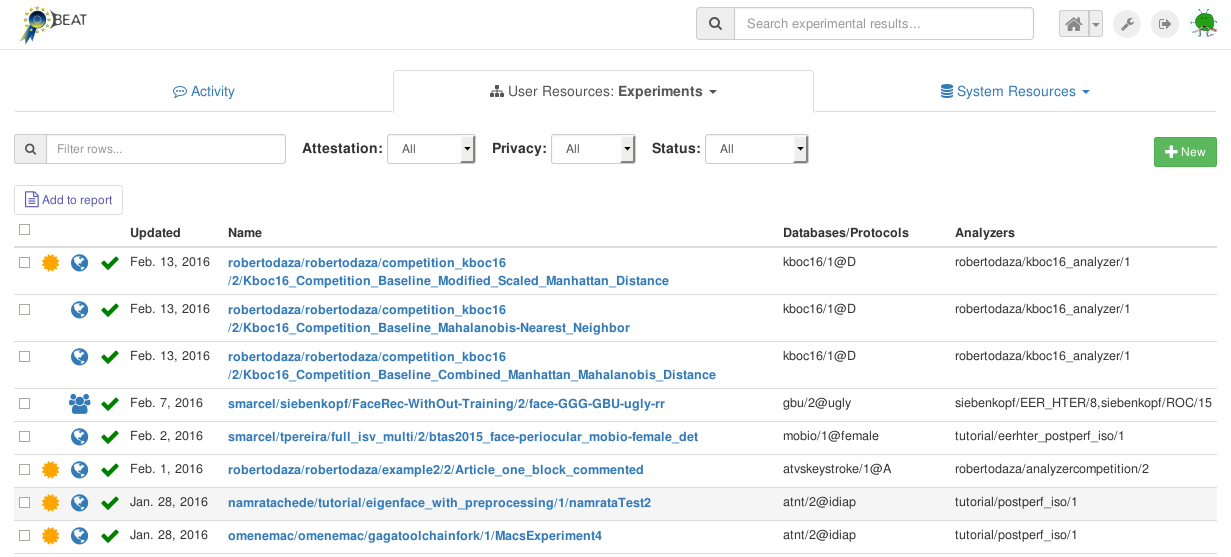
You can use the various filters (Attestation, Privacy and Status)
as well as the free-text Search-box to narrow down your search. For each
Experiment shown in the list, additional information is also displayed.
This includes:
a gold medal: indicating whether an attestation has already been generated for this experiment,
a green tick: indicating that the last execution of the
Experimentwas successful,the database used in this
Experiment, and,the analyzers used in this
Experiment.
Clicking on any Experiment, leads to a new page, displaying its
configuration and results:
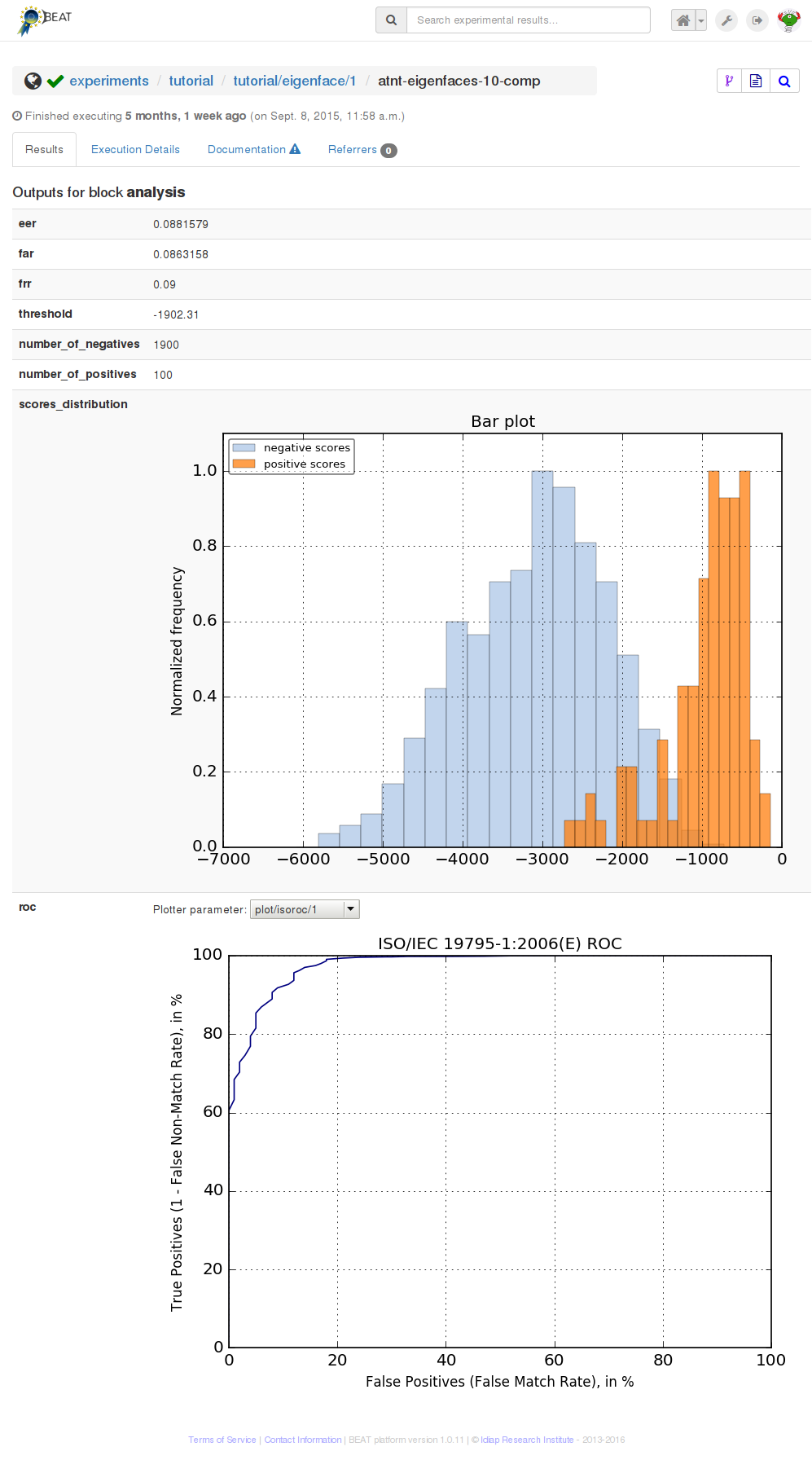
This page consists of several Tabs: Results, Execution Details,
Documentation, and Referers. Of these, the first two tabs are the most
useful. By default, the Results tab is open, showing the results of the
Experiment.
The contents of the Results tab depends on the configuration of the
Analyzer in the Toolchain. Typically, numerical values, such as various
kinds of error-rates, as well as graphical elements, such as ROC curves for
different data-sets, are displayed in this tab.
On the Execution Details tab , a graphical representation of the
Toolchain is displayed. This tab also displays the parameters selected for
each block in the Toolchain, as well as information about the execution of each
block (queuing time and execution time).
Icons for several actions are provided in the top-right region of the
Experiment page. The list of icons should be similar to that shown in the
image below:
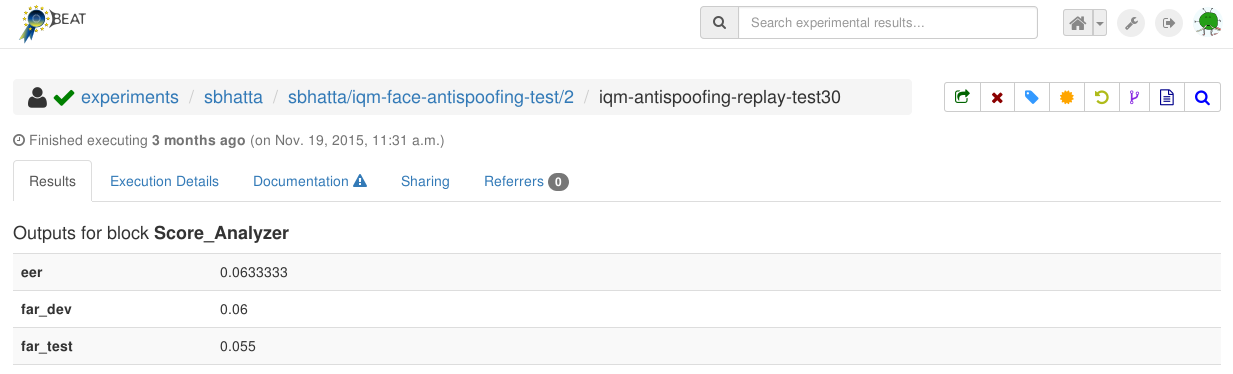
These icons represent the following options (from left to right):
green arrow: share the (currently private) experiment with other users
red cross: delete the experiment
blue tag: rename the experiment
gold medal: request attestation
circular arrow: reset the experiment (if some of the blocks in the experiment have been ran before the platform will use the cache available for the outputs of those blocks)
fork: fork a new, editable copy of this experimentpage: add experiment to report
blue lens: search for similar experiments
(Placing the mouse of an icon will also display a tool-tip indicating the
function of the icon.) The exact list of options provided will depend on what
kind of experiment you are looking at. For example, the gold medal will
appear on the page only if you are permitted to request attestation for this
particular experiment (i.e., if you are the owner of this experiment and it
executed sucessfully).
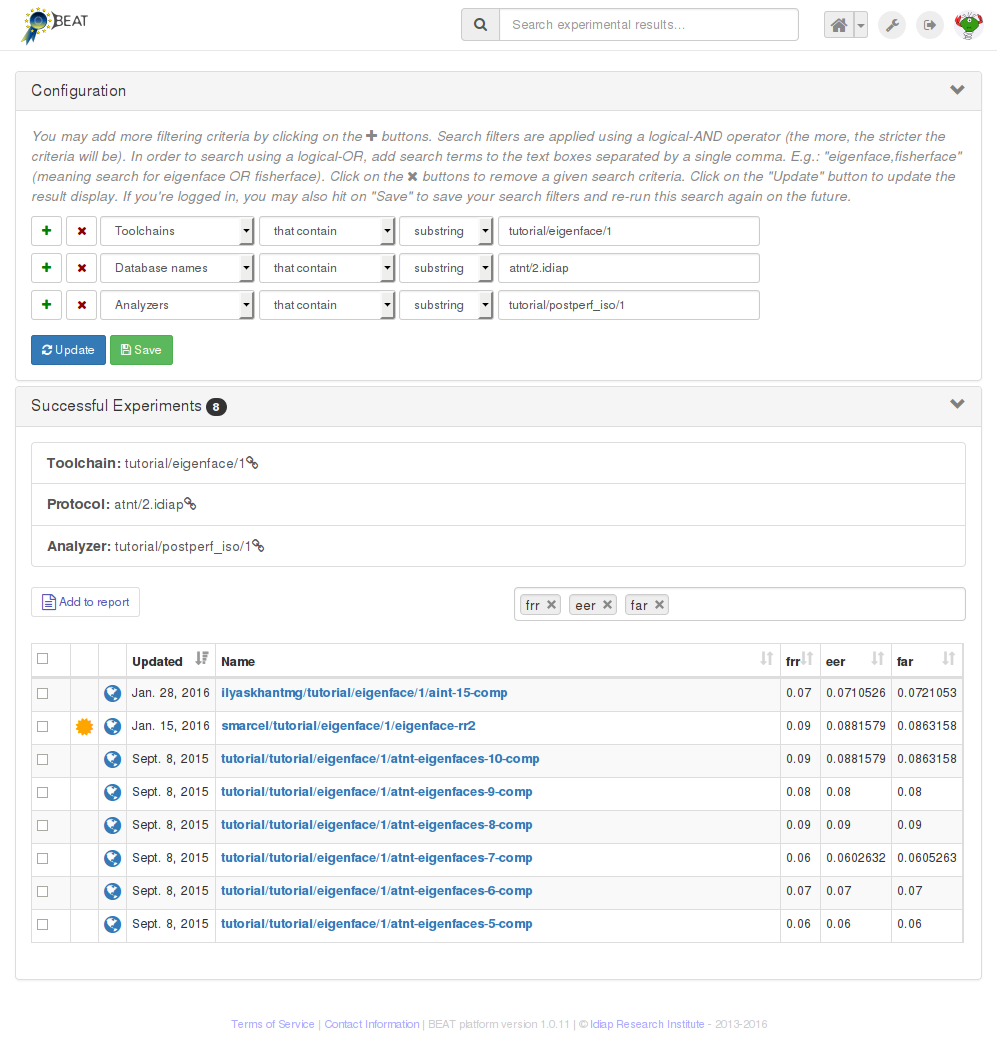
The button Similar experiments opens a new tab where experiments using the
same toolchain, analyzer or database are shown:
3.2. Sharing an experiment
As with other components within the platform, all the elements that are created
within the platform are private in nature, so this means that only the user
that creates them have access to the information concerning that particular
object. If you Share an experiment, it becomes accessible by the users of the
platform. You can read the sharing properties of an experiment by browsing to
the Sharing tab, on the relevant data format page.
Note
Sharing status
The sharing status of an experiment is represented to the left of its name, in the format of an icon. A data format can be in one of these three sharing states:
Private (icon shows a single person): If an experiment is private, only you can and only you can view its properties, run results, etc.
Shared (icon shows many persons): If an experiment is shared, only people on the sharing list can view its properties and run results.
Public (icon shows the globe): If an experiment is public, then users and platform visitors can view its properties, run results, etc.
Sharing at the BEAT platform is an irreversible procedure. For example, public objects cannot be made private again. If you share an object with a user or team and change your mind, you can still delete the object, for as long as it is not being used by you or another colleagues with access (see more information on our Frequently Asked Questions).
3.3. Running an experiment
In order to start running an experiment on the platform, the current way to do it is by using the beat command on the command line.
$ beat exp <experiment_full_name> run
The run status of the experiment can be followed using either the –monitor option to the previous run subcommand or use the runstatus subcommand.
$ beat exp <experiment_full_name> runstatus
This subcommand can be used to monitor the experiment run at any time.
Canceling and reseting an experiment can also be done from the command line with the corresponding subcommands:
$ beat exp <experiment_full_name> cancel
$ beat exp <experiment_full_name> reset
Note that the reset of an experiment can only be done after a completed run (successful or not) or after cancellation was completed.